Group Node
The Group Node is a logic node used to organize the workflow, encapsulating a set of nodes in a single visual block.
It does not change the execution logic: the flow enters the Group, goes through the internal nodes, and exits exactly as if they were at the root of the workflow.
Use the Group when you want to visually simplify the flow, isolating complex parts without changing the workflow behavior.
Behavior
When a Group is created, it starts representing a section of the flow as if it were a single node:
- Connections that previously reached the grouped nodes now enter the Group.
- Connections that previously left the grouped nodes now exit from the Group.
- The order and conditions of execution remain the same — the Group is just a “box” around the existing flow.
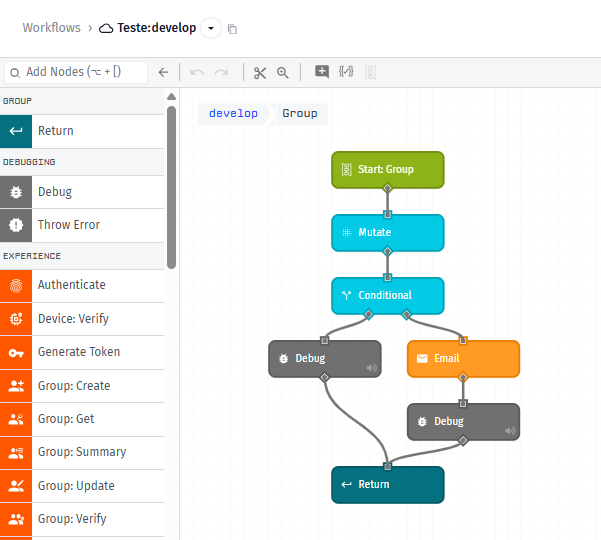
Inside the Group, the flow is structured in three parts:
-
Start: Group
- Entry node of the Group.
- Receives the flow coming from the main workflow.
- From it, the internal flow is executed.
-
Internal nodes
- These are the nodes you grouped or added later.
- They can contain any logic (mutate, conditionals, external calls, etc.).
-
Return
- Marks the exit point of the internal flow.
- When execution reaches the Return, it goes back to the main flow, following the Group’s outgoing connection.
How to create a Group
Grouping existing nodes
Use this option when you already have a flow segment built and just want to “wrap” that segment in a Group.
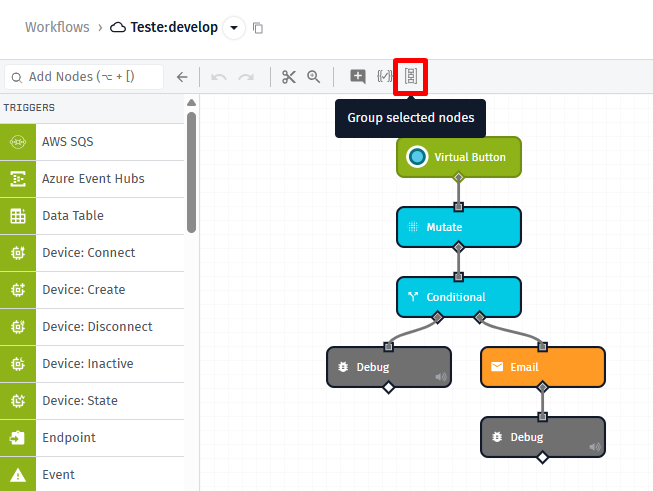
- On the workflow canvas, select two or more contiguous nodes from the flow.
- In the editor toolbar, click Group selection.
- The editor will:
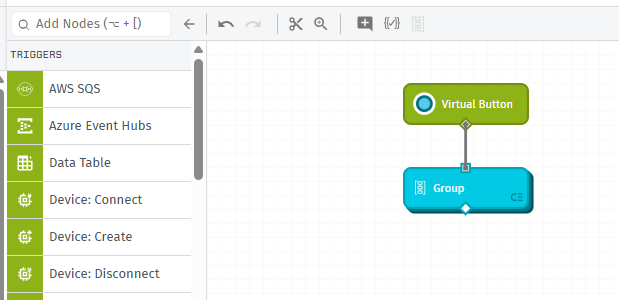
- Create a Group Node in place of the selected segment.
- Move the selected nodes inside the Group.
- Create the internal structure with Start: Group and Return.
- Reconfigure the connections to keep exactly the same input and output flow.
In the main flow, you will see only one Group node representing that piece of logic.
Adding an empty Group from the palette
Use this option when you want to start a new logic segment already inside a Group.
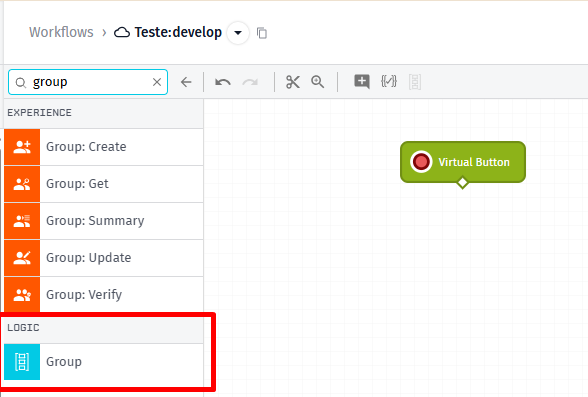
- In the side palette, under the Logic category, look for Group.
- Drag the Group node onto the canvas.
- When the Group is created, the editor already adds inside it:
- A Start: Group node.
- A Return node, positioned as the default output.
After that, you can enter the Group and build the internal flow normally, connecting nodes between Start: Group and Return.
Editing the Group contents
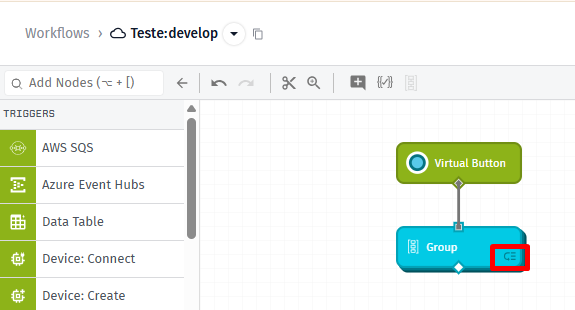
When you click View group contents (or the equivalent in the interface), you enter the Group’s internal context. In this mode:
- Start: Group appears at the top as the entry point.
- Internal nodes can be added, removed, or rearranged just like in any other workflow.
- Return appears as the final destination of the internal flow.
If the Return node is removed, you can add it again from the palette (under the Group section) and connect it to the last node of the internal flow.
When to use the Group
Use the Group Node to:
- Organize large workflows: hide implementation details and keep the main flow more readable.
- Isolate complex logic: concentrate decisions, transformations, or integrations in a single block.
- Preserve the same behavior of the flow, only improving the visual structure.
The Group does not add loops, extra conditions, or multiple outputs by itself; it only encapsulates existing nodes in a clearer, more reusable way in the interface.
Was this page helpful?
Still looking for help? You can also search the WEGnology Forums or submit your question there.