Searching Workflow Variables
Find & Replace is a tool within the workflow editor that allows you to search for values across all nodes in your workflow and replace them in bulk. This is especially useful when you need to update variable references, payload paths, or other field values across many nodes without manually opening and editing each one.
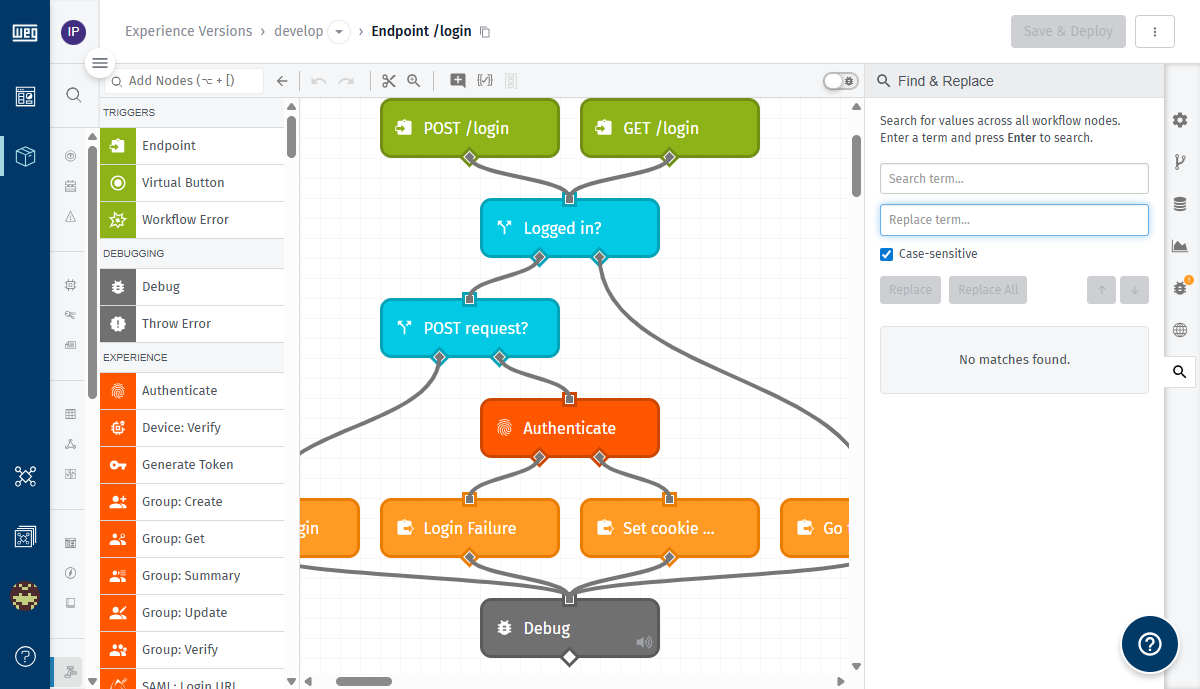
Opening Find & Replace
To open the Find & Replace panel, press Ctrl+F while in the workflow editor. The panel appears in the right column, displaying the "Find & Replace" header with an icon.
Searching for Variables
The Find & Replace panel includes a Search term… text input. Type a value into this field and press Enter to search across all nodes in the current workflow.
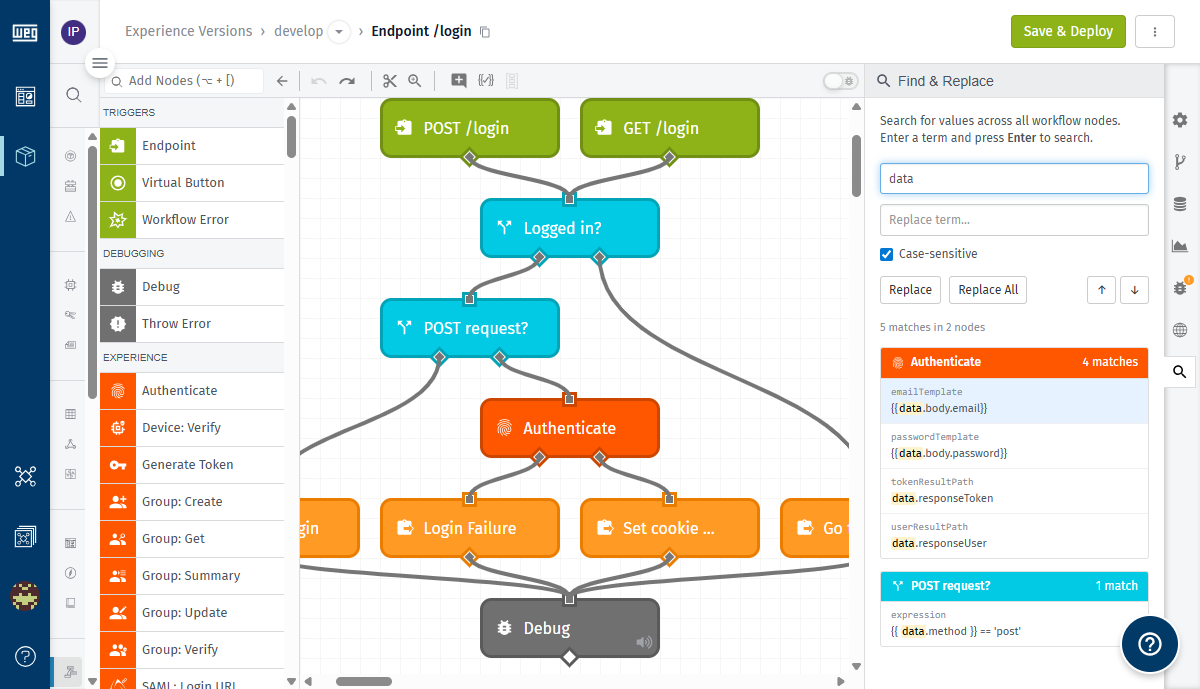
After a search completes, the panel displays a results summary line, such as:
5 matches in 2 nodes— when matches are found.No matches found.— when the search term does not appear in any node.
Matches are grouped by node. Each node group shows:
- The node's icon.
- The node's name.
- A per-node match count (e.g. "4 matches", "1 match").
Under each node, every match lists the field or property name where the match was found (e.g. emailTemplate, passwordTemplate, tokenResultPath, userResultPath, expression) and the value with the matched term highlighted.
Use the Previous match (↑) and Next match (↓) navigation buttons to move between matches. These buttons are disabled until a search returns results.
Replacing Variables
The Replace term… text input allows you to specify a replacement value. When a replace term is entered, each match row displays a "Replace with:" preview line showing what the value will become after replacement.
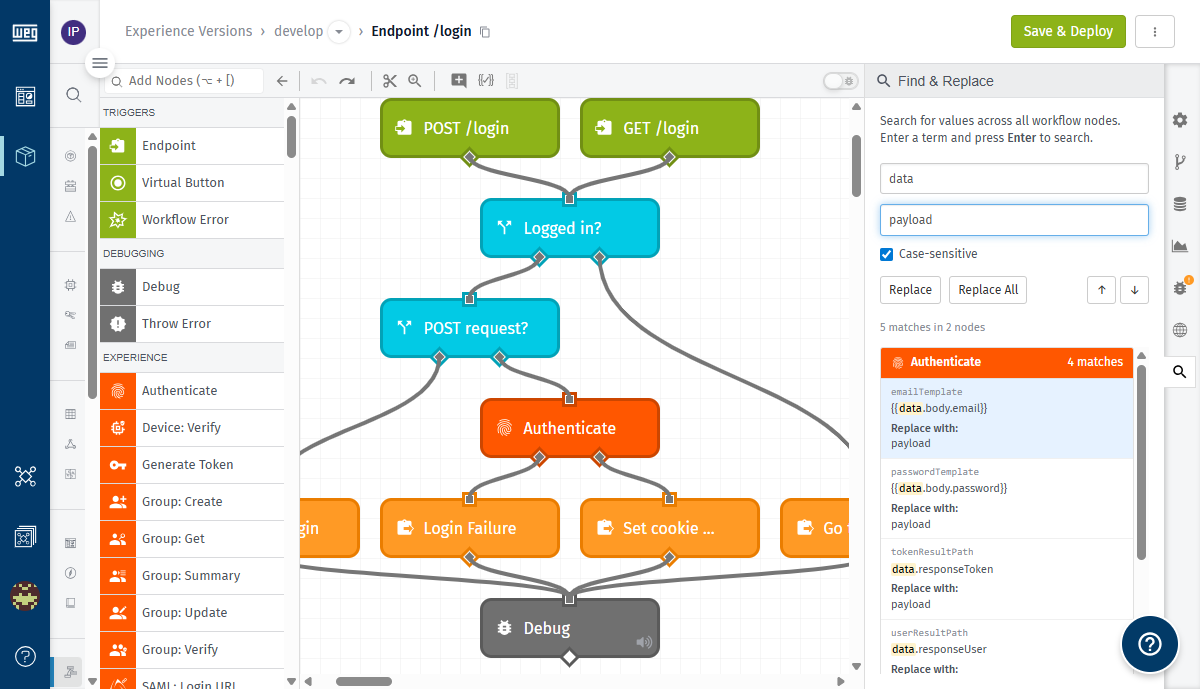
The panel provides two replace actions:
- Replace: Replaces the currently selected match with the replace term. Use the Previous/Next navigation buttons to select which match to replace.
- Replace All: Replaces every match across all nodes at once.
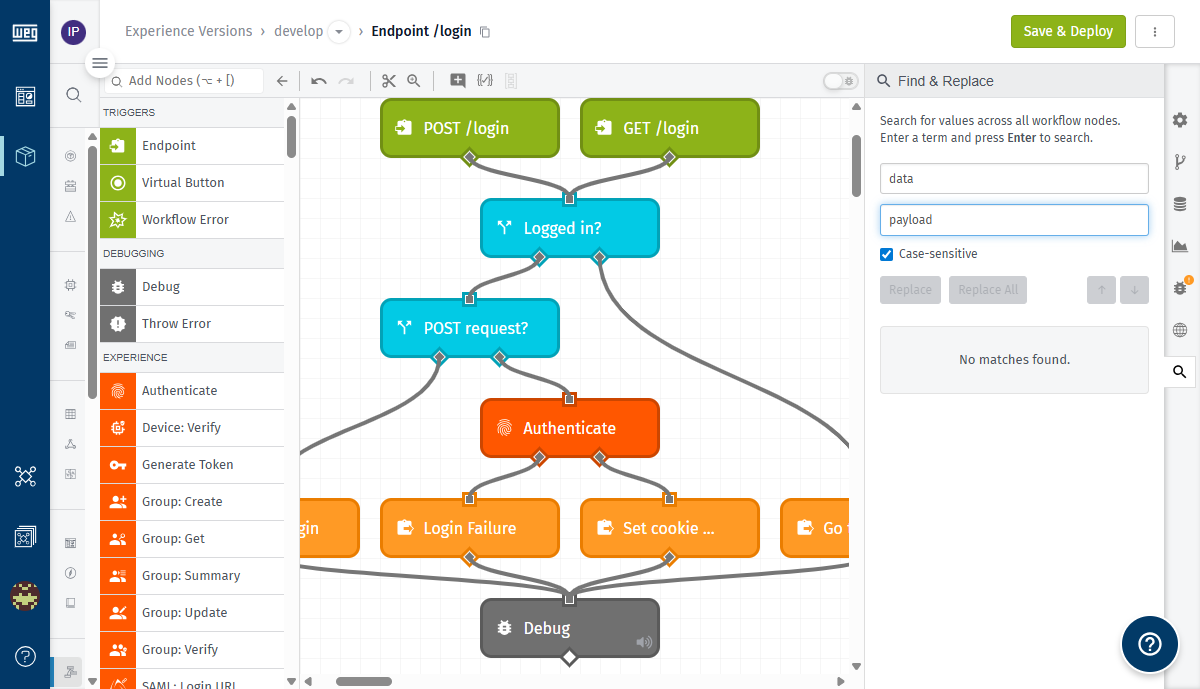
After clicking Replace All, the results summary changes to No matches found. (because the search term no longer exists in any node). The editor's Save & Deploy button becomes enabled, indicating that changes are pending save. The editor's Undo button also becomes available, so a Replace All operation can be reverted before saving.
Search Options
The Find & Replace panel includes one search option:
Case-sensitive: A checkbox, checked by default, that controls whether the search matches exact case. When unchecked, the search ignores letter casing (e.g. searching fortempwould match bothtempandTemp).
Notes and Limitations
- Find & Replace searches across all nodes in the current workflow.
- Changes made via Replace or Replace All are not saved until you click Save & Deploy. Use Undo to revert an unintended replace before saving.
- On read-only (non-Develop) workflow versions, editing is disabled. For more information, see Editing Existing Versions.
- The Find & Replace panel is available within the workflow editor.
Was this page helpful?
Still looking for help? You can also search the WEGnology Forums or submit your question there.